Measure what you have
Once your photos, family video and films are gathered, check the size of each top-level folder. Your computer's file properties will tell you. Write those numbers into your inventory, then estimate how quickly each grows: photo and phone video collections usually grow every year, while a film library grows only when you add titles. Plan for several years of growth and leave free space on every drive, because nearly full drives are slower and harder to recover.
Count each copy separately. If the 3-2-1 rule calls for three copies of your family archive, you need room for it three times, though not every copy needs to hold the replaceable film collection.
The main storage options
| Option | Suits | Trade-offs |
|---|---|---|
| External USB drive | One person, one computer, modest collections | Easy to lose or drop; must be plugged in to back up |
| Pre-built network storage (e.g. Synology, QNAP) | Families sharing one library, streaming to TVs | Higher cost; vendor software updates to keep up with |
| DIY server (e.g. TrueNAS, Unraid) | Hobbyists happy to maintain hardware | Flexible, but recovery depends on your own skills |
| Cloud storage | Off-site copy, access from anywhere | Ongoing fee; slow first upload; depends on the provider |
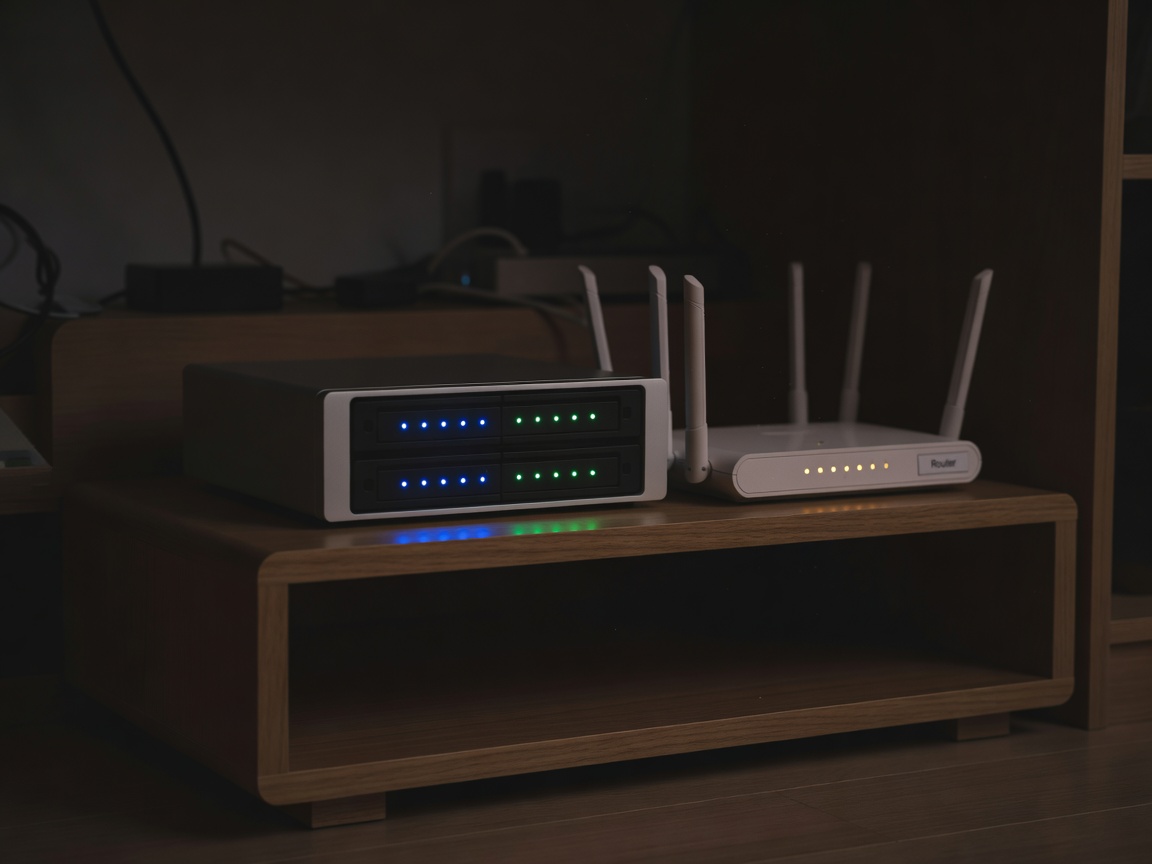
For many households the answer is an external drive or two-bay network storage box for the working library, plus a separate backup. Choose the simplest option that meets the needs in your inventory.
RAID, mirrors and what they do not do
Network storage boxes often combine several drives. A mirror (RAID 1) writes everything to two disks so one can fail without downtime. Arrangements such as RAID 5 or 6 spread data across more disks for capacity. These are about availability, not safety. If you delete a folder, if software corrupts a file or if ransomware encrypts the share, every disk receives the same damage at once.
File systems such as ZFS (used by TrueNAS) and Btrfs (used by many Synology models) add checksums that detect silent corruption and support snapshots: read-only moments in time you can roll back to. Snapshots are a valuable extra layer, but they still live on the same hardware.
Building the backup layer
The working library is copy one. Add:
- A local backup on a different device, such as an external drive updated on a schedule.
- An off-site copy, either a cloud backup service with version history or a drive rotated to a relative's or workplace.
Backup tools such as restic, or the built-in tools on Windows, macOS and most network storage, can automate this. rclone is a common choice for copying to cloud storage. Whatever you use, turn on versioning where available, and test a restore.
Watching drive health
Every drive eventually fails. Hard drives report their condition through SMART attributes, and most network storage will email you a warning when these change. Backblaze publishes regular drive reliability statistics from its data centres, which are a useful reality check when comparing models. Replace drives showing growing numbers of reallocated or pending sectors before they fail outright.
A small uninterruptible power supply (UPS) protects network storage from sudden power cuts, which are a common cause of corrupted file systems.
Do you need a media server?
A media server such as Plex, Jellyfin or Emby makes an organised library pleasant to browse on televisions and phones. It does not organise anything by itself, and it is not a backup. Many network storage boxes can run one directly; older models may struggle to convert high-resolution video for some devices, so check your televisions can play your files natively.
Write the recovery note
Finish with a single page: what hardware you have, where each copy lives, how backups run, account names and where passwords are kept. Print it and store it with your important papers. If you were unavailable, this page would let someone else recover the family's memories.